Google Docs tutorial

How to strikethrough text in Google Docs

By Explaino Team · Updated

Quick answer

This guide will show you how to apply and remove strikethrough formatting to text in your Google Docs, helping you mark text for deletion or revision. In short: To apply strikethrough, first select the text you wish to format. Watch the 5-step walkthrough below.

Watch: How to strikethrough text in Google Docs

Made with Explaino from one screen recording.

Apply and Remove Strikethrough in Google Docs

This guide will show you how to apply and remove strikethrough formatting to text in your Google Docs, helping you mark text for deletion or revision.

Step by step

  1. 1

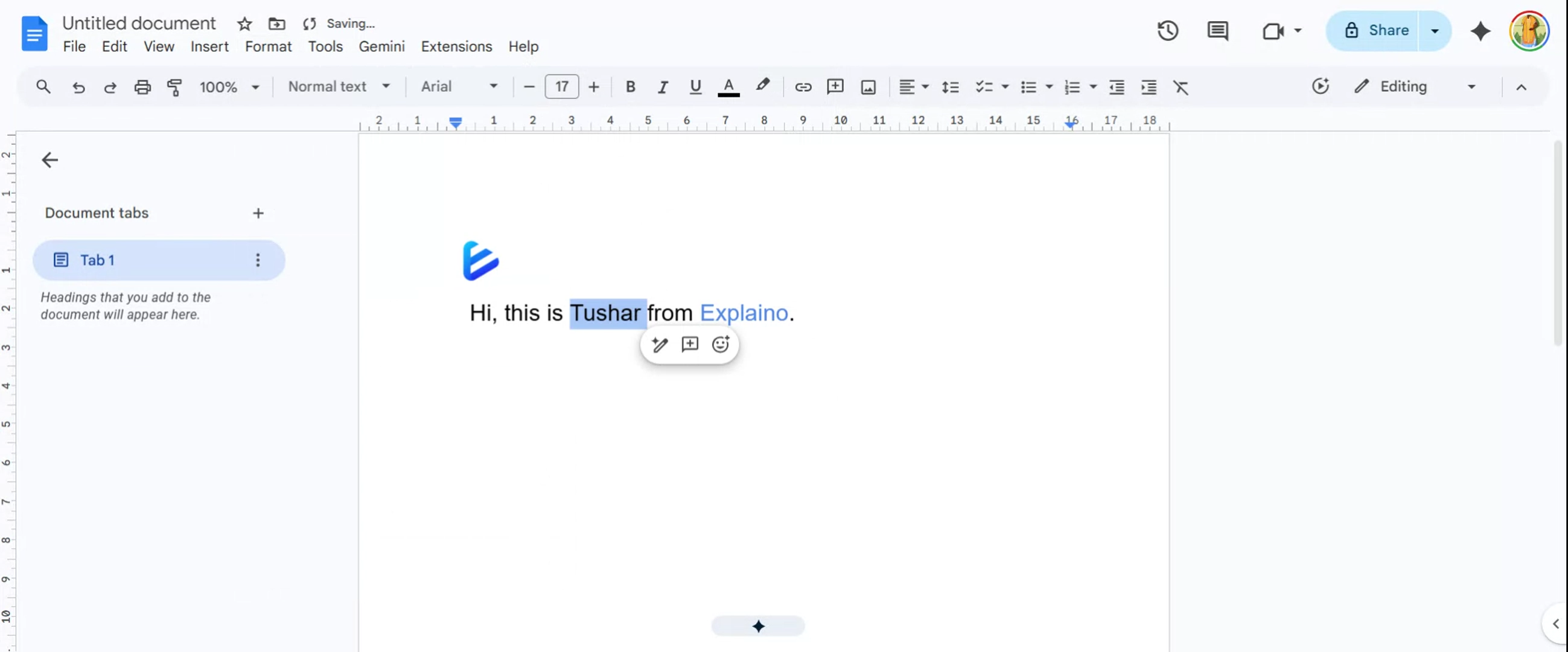
    To apply strikethrough, first select the text you wish to format. Then, click on the Format menu in the toolbar.
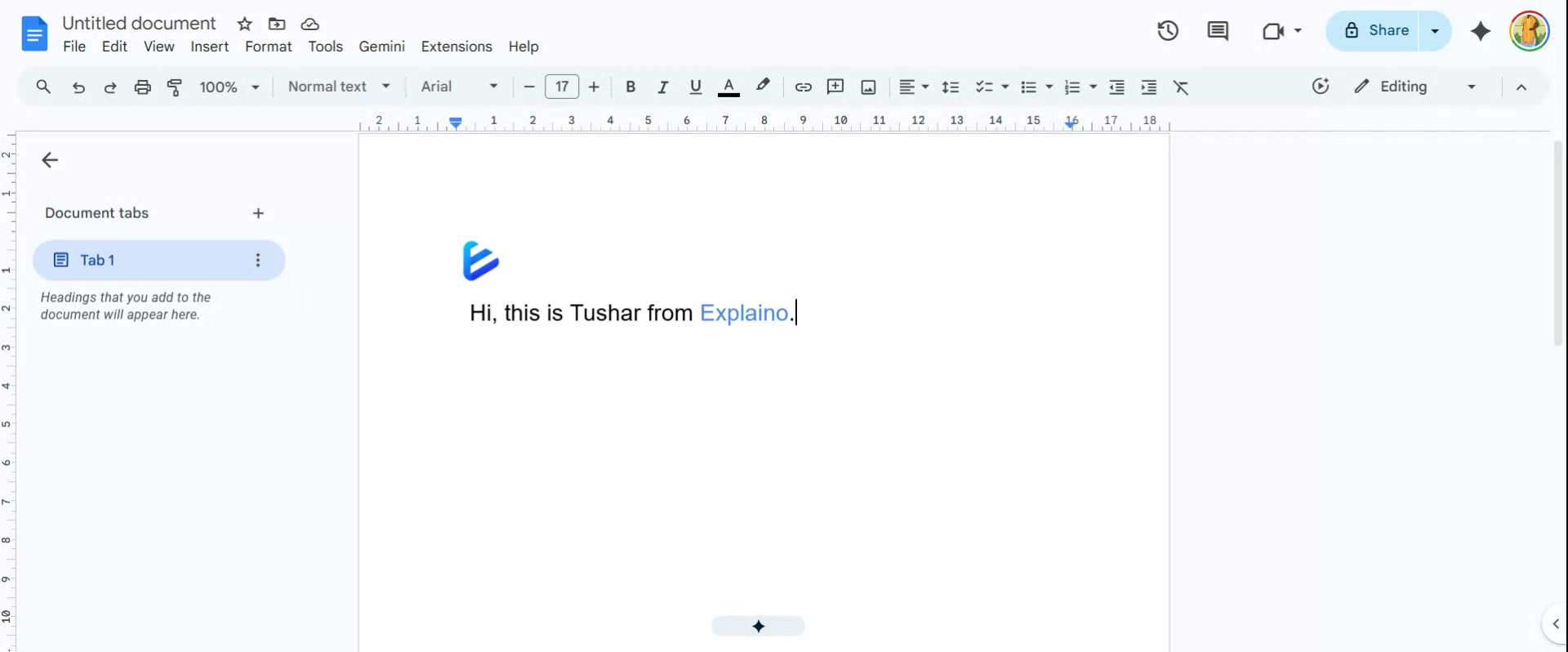
    Step 1: To apply strikethrough, first select the text you wish to format.
  2. 2

    From the dropdown menu, hover over Text to reveal more formatting options.
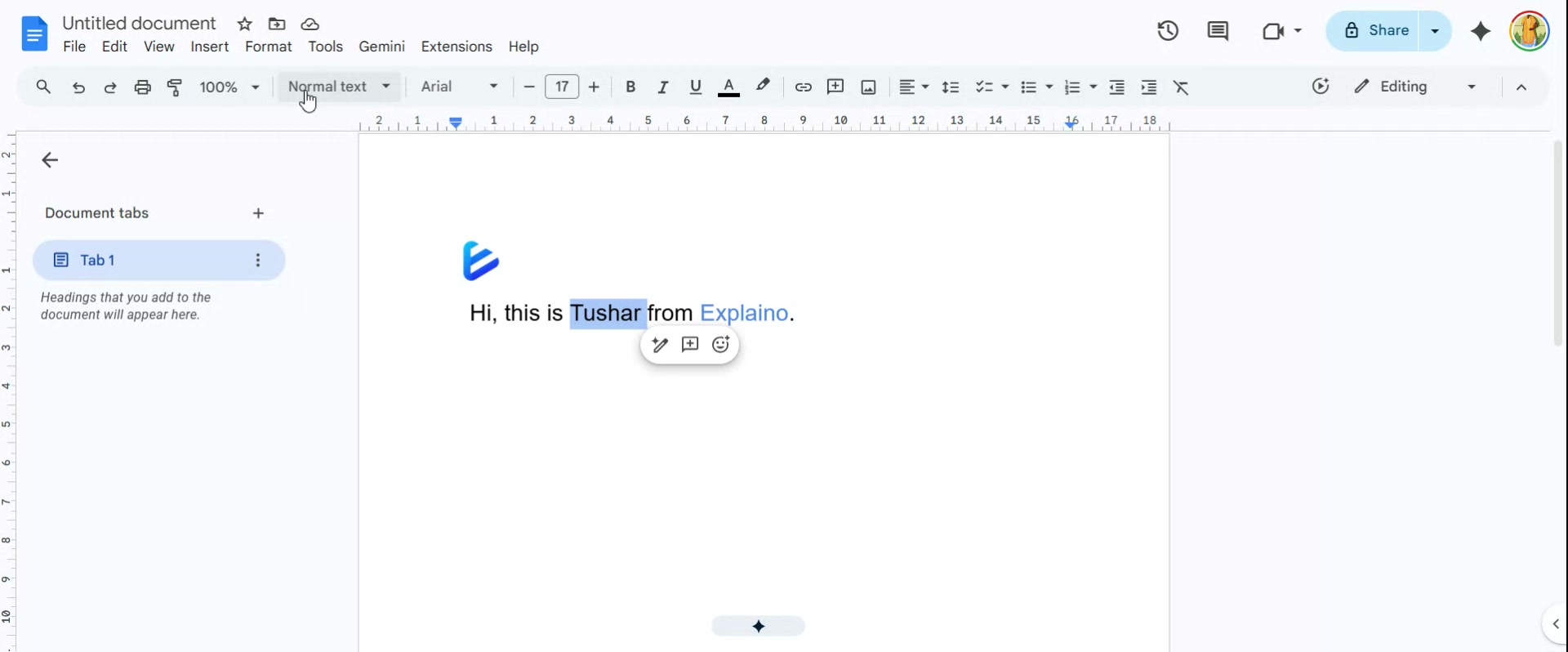
    Step 2: From the dropdown menu, hover over Text to reveal more formatting options.
  3. 3

    Click on Strike-through to apply the formatting to your selected text.
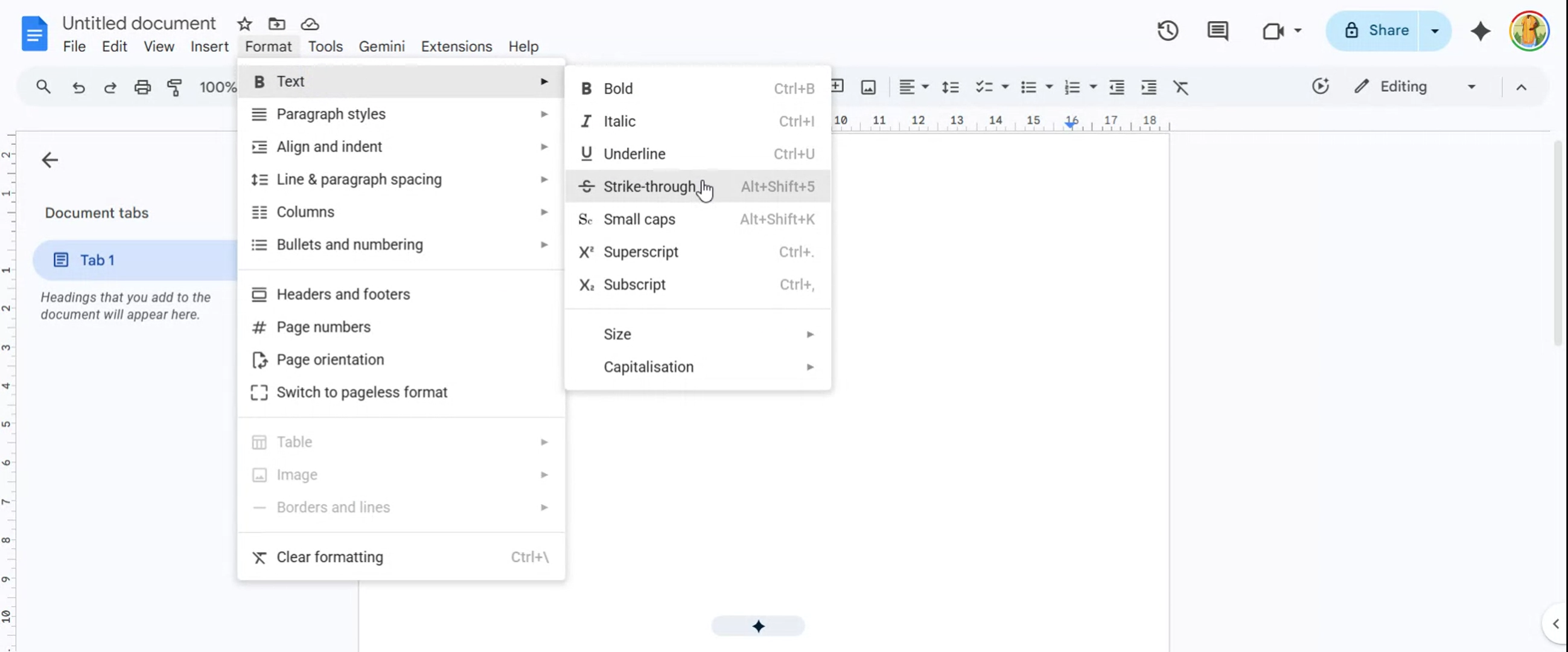
    Step 3: Click on Strike-through to apply the formatting to your selected text.
  4. 4

    Click over Text once more, and then repeat the process, clicking on Strike-through again to remove the formatting. The text will revert to its original appearance.
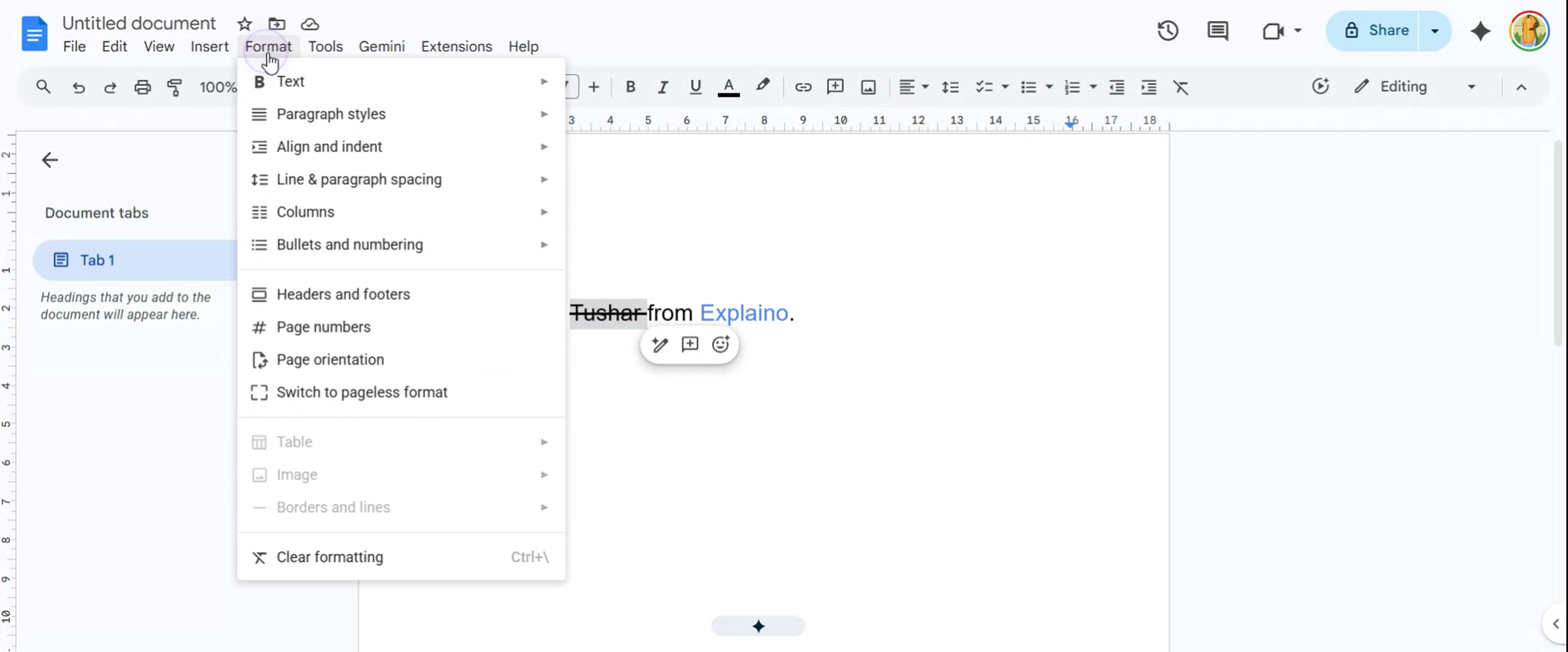
    Step 4: Click over Text once more, and then repeat the process, clicking on Strike-through again to remove the form…
  5. 5

    Simple isn't.

    Step 5: Simple isn't.

Formatting Complete

You have successfully learned how to apply and remove strikethrough formatting in Google Docs. Use this feature to effectively communicate text changes or mark items as complete.

Make your own Google Docs tutorial like this in minutes

Record your screen once. Explaino adds the voiceover, smart zoom and captions, and writes the step-by-step article with screenshots for you.

Free plan · no credit card required