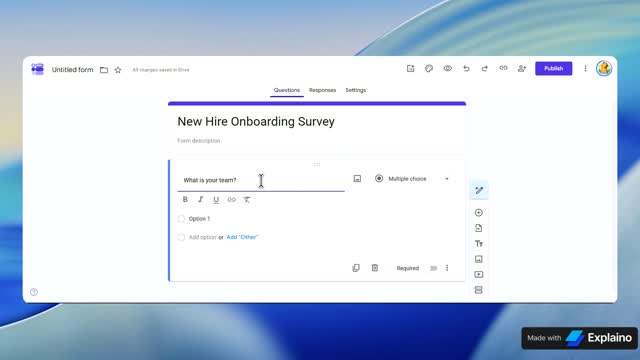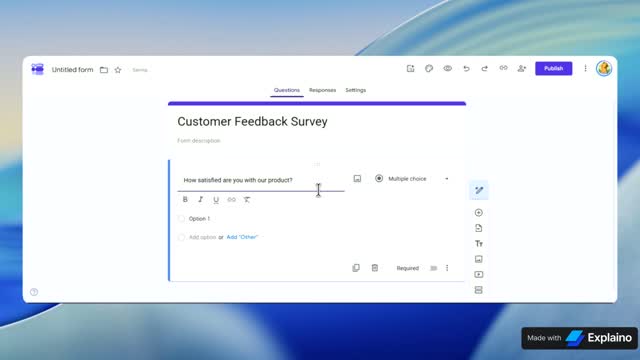

Google Forms tutorial
How to create a quiz in Google Forms
Step 1 of 7
Recorded once, then narrated, zoomed and captioned by Explaino.
Follow along
scroll to advanceCreate a Graded Quiz in Google Forms
This guide will walk you through creating a graded quiz from a blank form in Google Forms, covering how to set up questions and assign points.
- 1
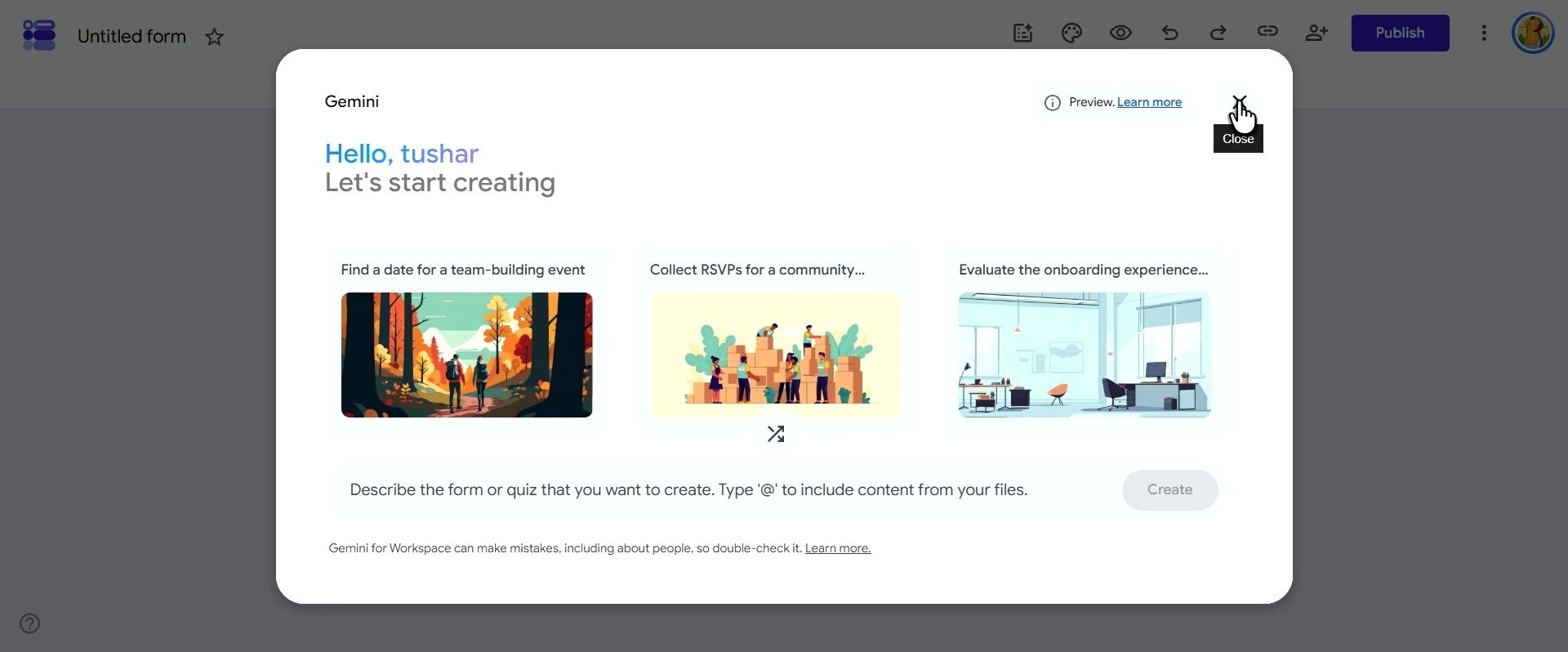
Close the Gemini modal overlay by clicking the Close button
- 2
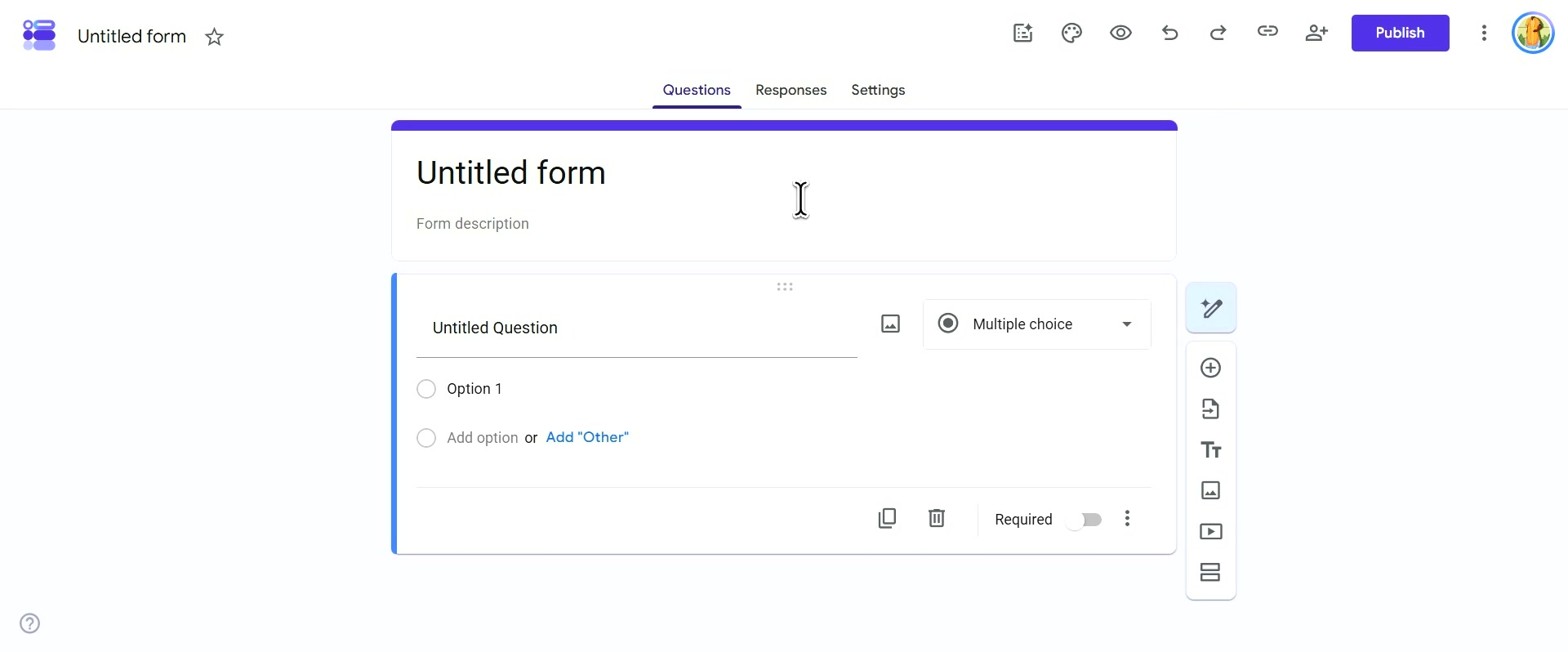
Click the Untitled form title at the top of the page
- 3
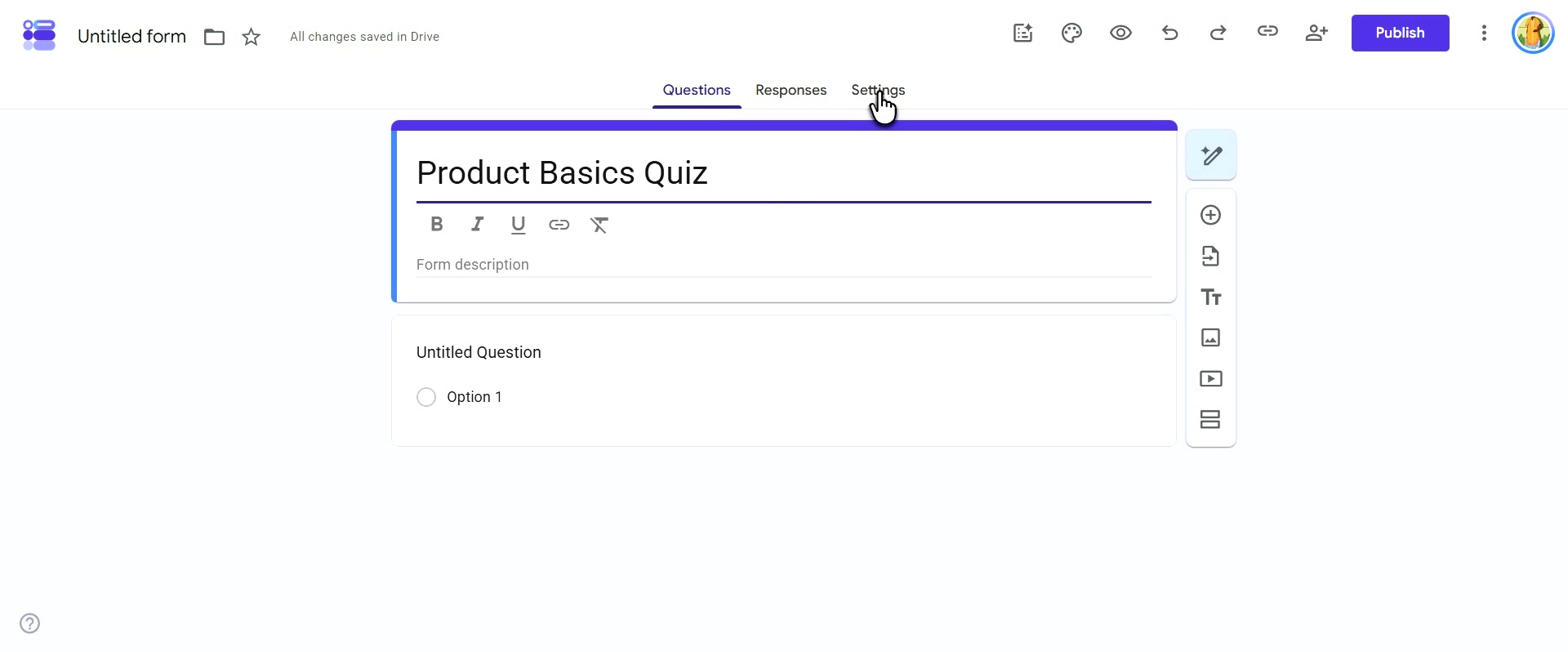
Navigate to the Settings tab
- 4
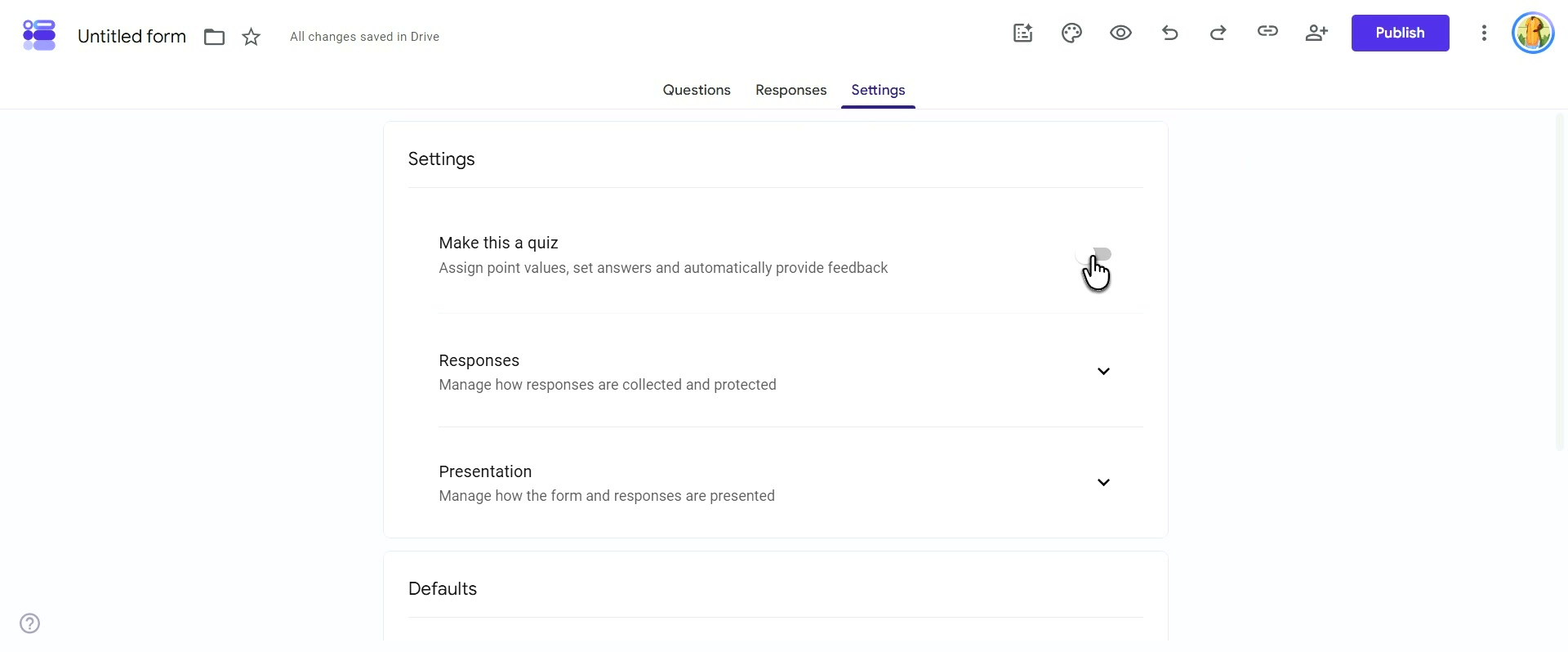
Toggle Make this a quiz to the active position
This will reveal additional quiz options.
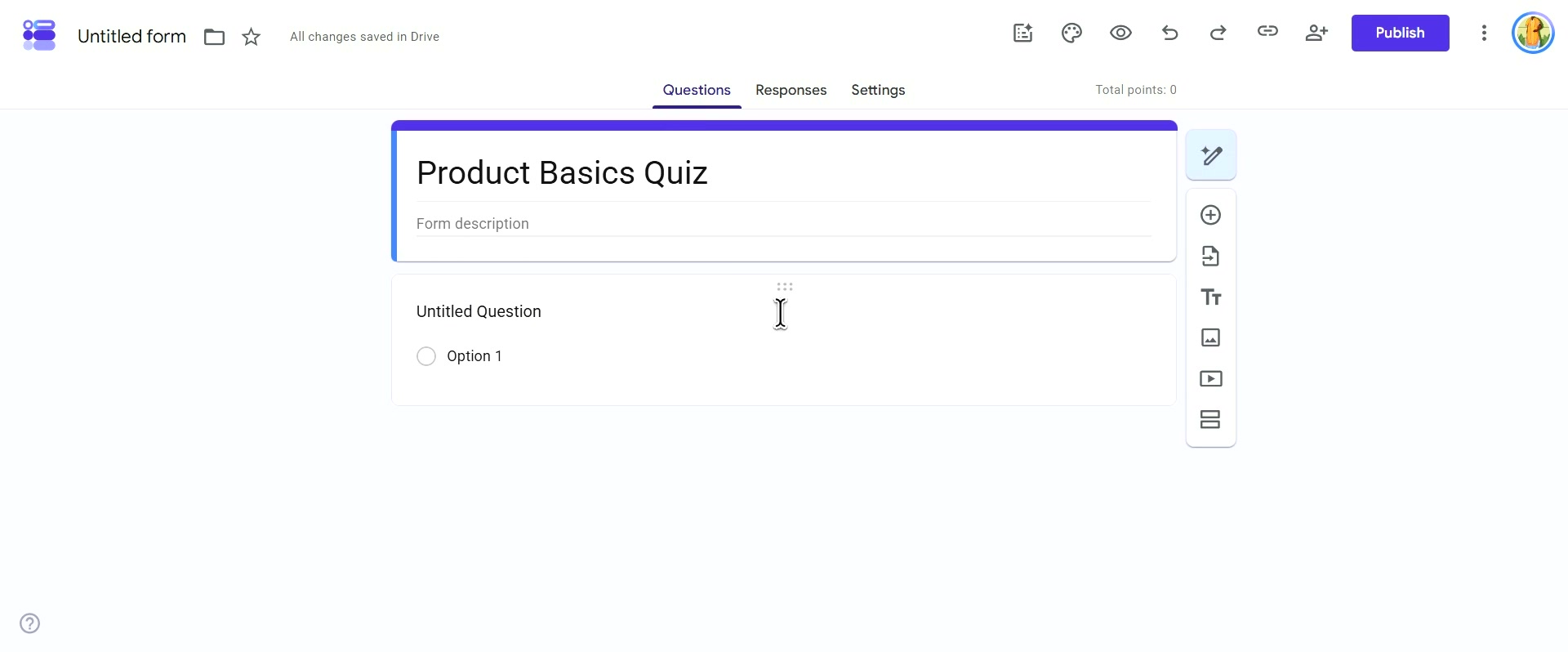
After enabling quiz mode, you can configure options such as when to release marks (immediately or after manual review) and respondent settings for missed questions and correct answers. The header will now display "Total points" set to zero, indicating that the form is ready for point assignment.
- 5
Return to the Questions tab
- 6
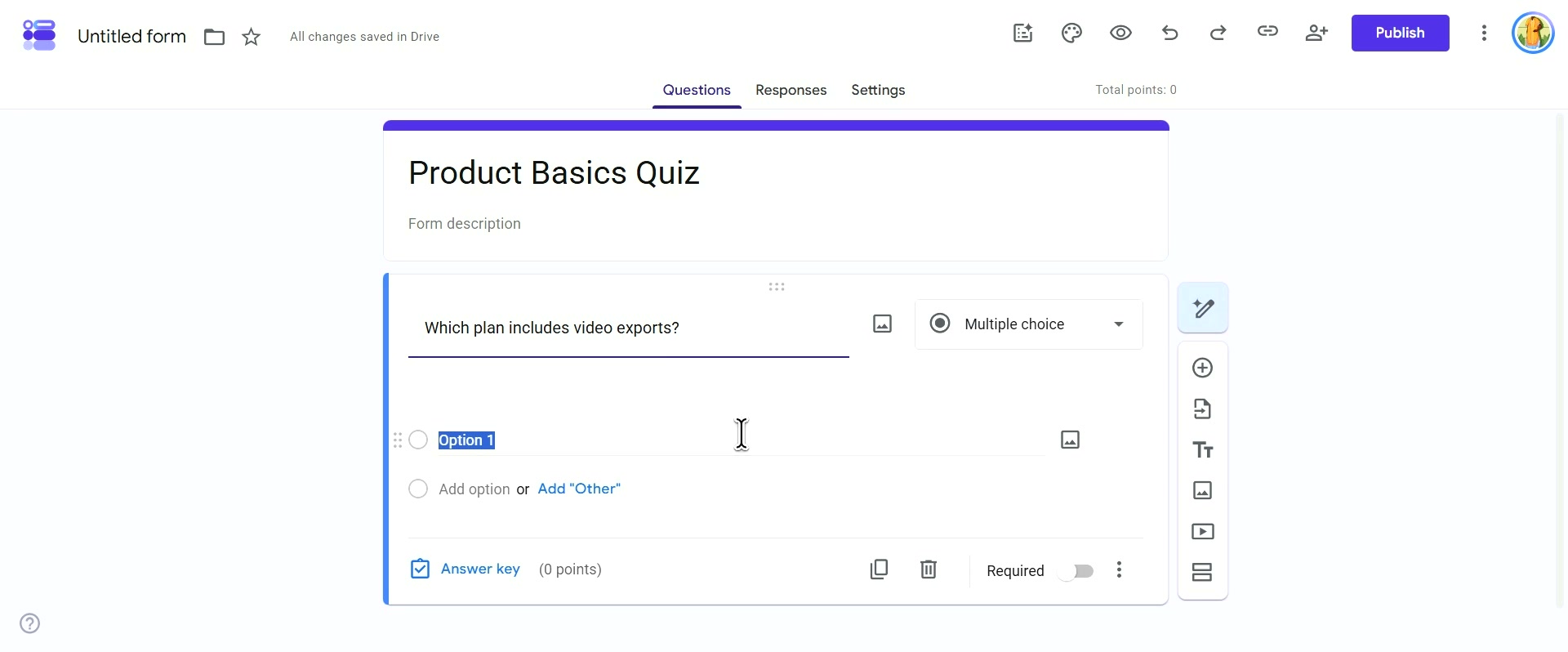
Type your question: "Which plan includes video exports?" The question type is set to Multiple choice, and
- 7
Click Answer key at the bottom of the question card
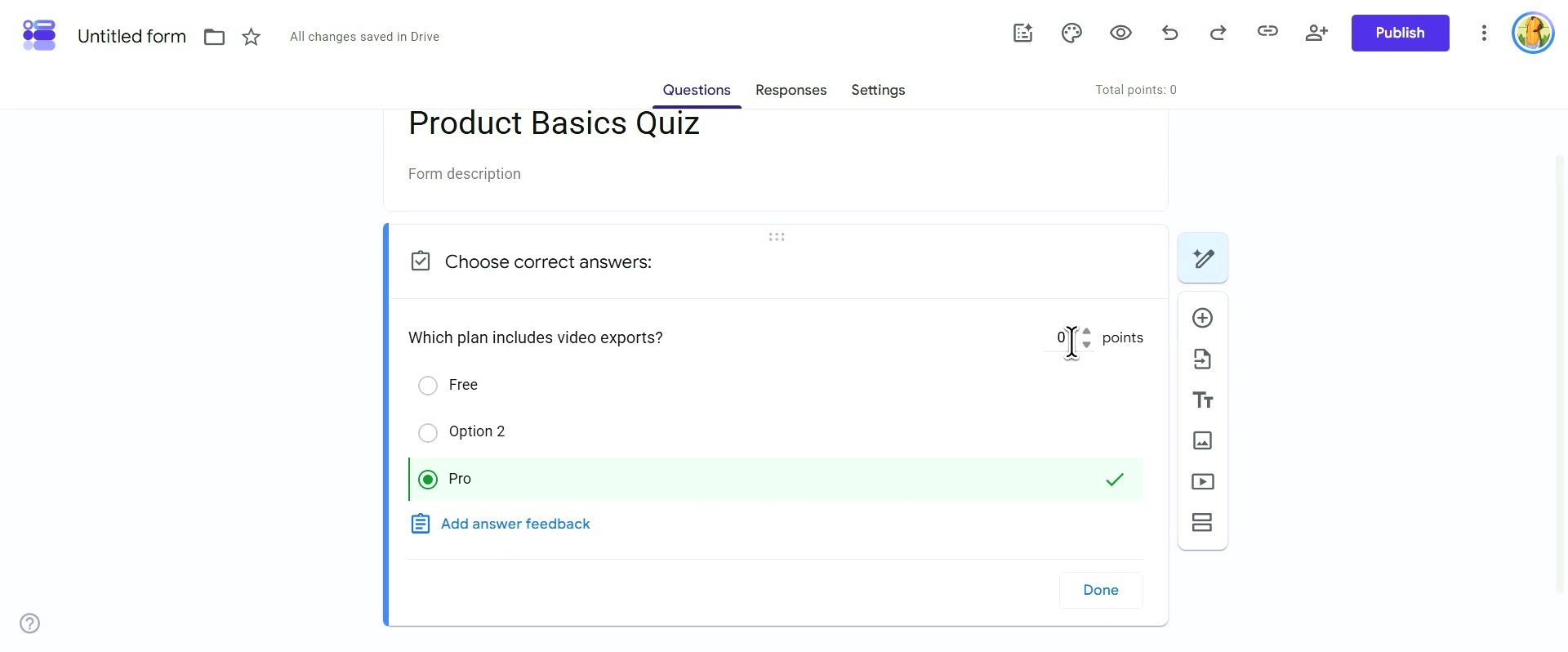
Quiz Question Complete
You have successfully created a graded quiz question with an answer key and point value. Continue adding more questions to complete your quiz.