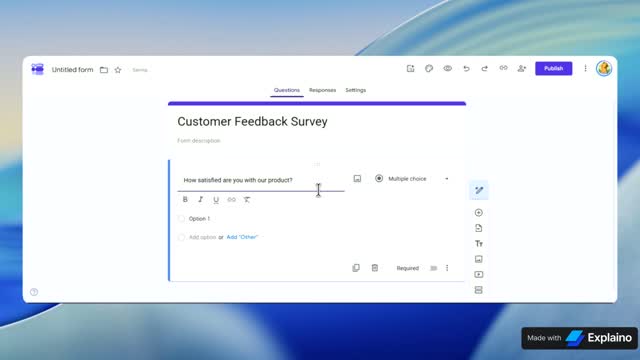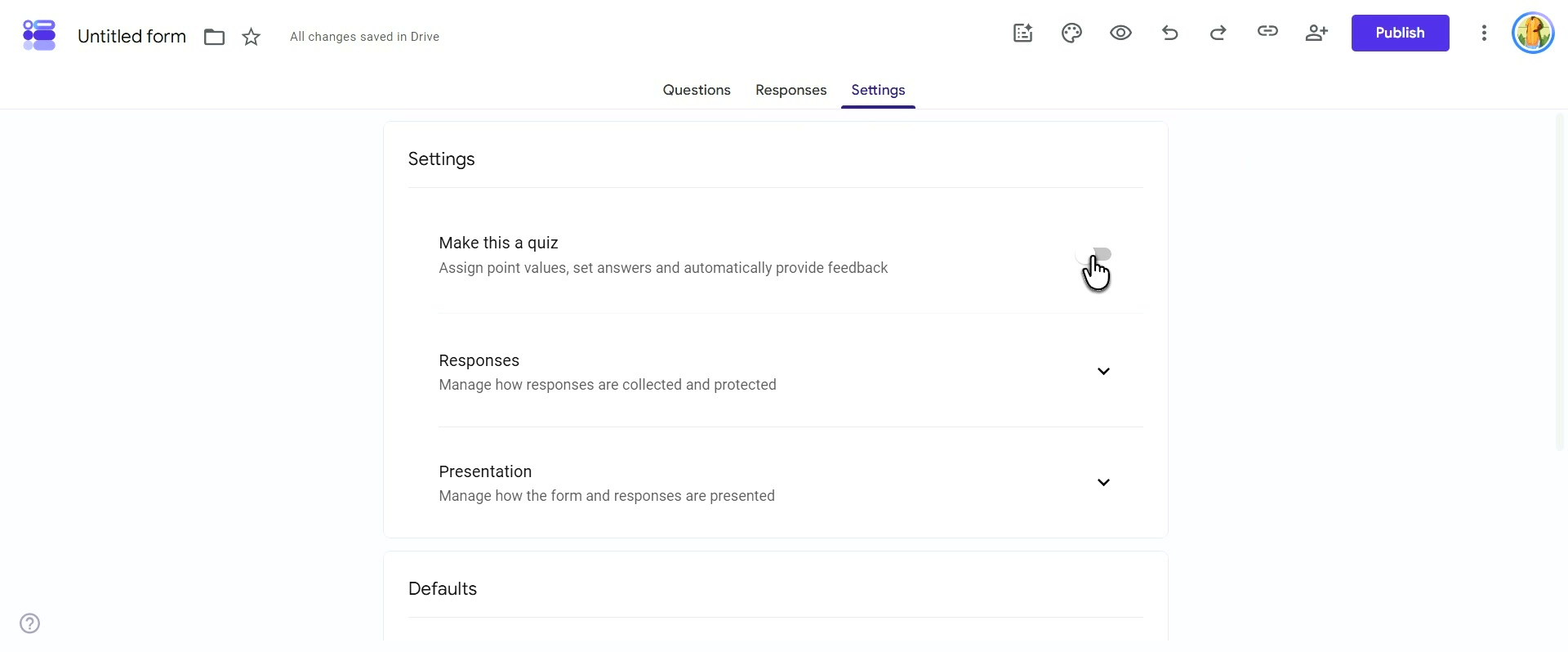

How to create sections in Google Forms
Recorded once, then narrated, zoomed and captioned by Explaino.
Follow along
scroll to advanceCreate a Multi-Section Google Form
This guide shows HR professionals and managers how to build a multi-section new hire onboarding survey in Google Forms, helping you organize questions into logical flows.
- 1
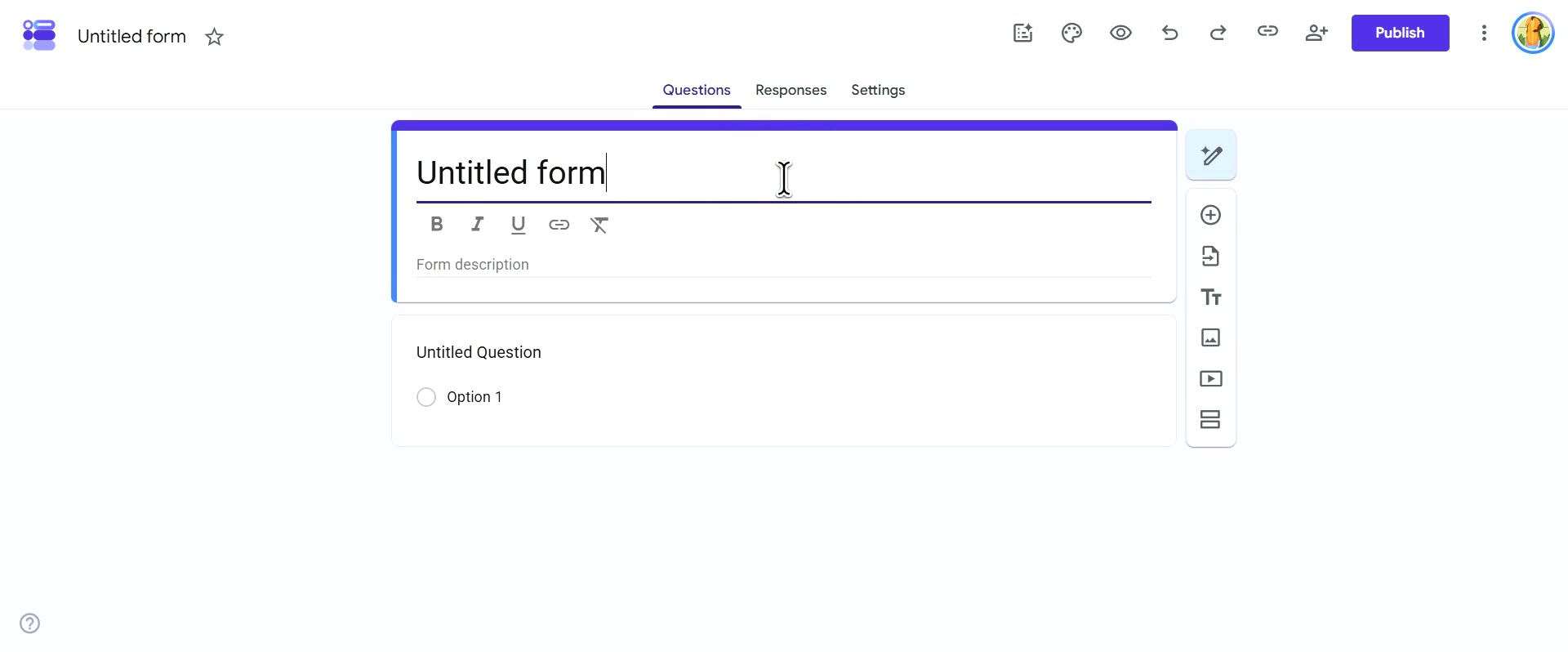
Click the Untitled form field at the top of the page and type "New Hire Onboarding Survey" to name your form
- 2
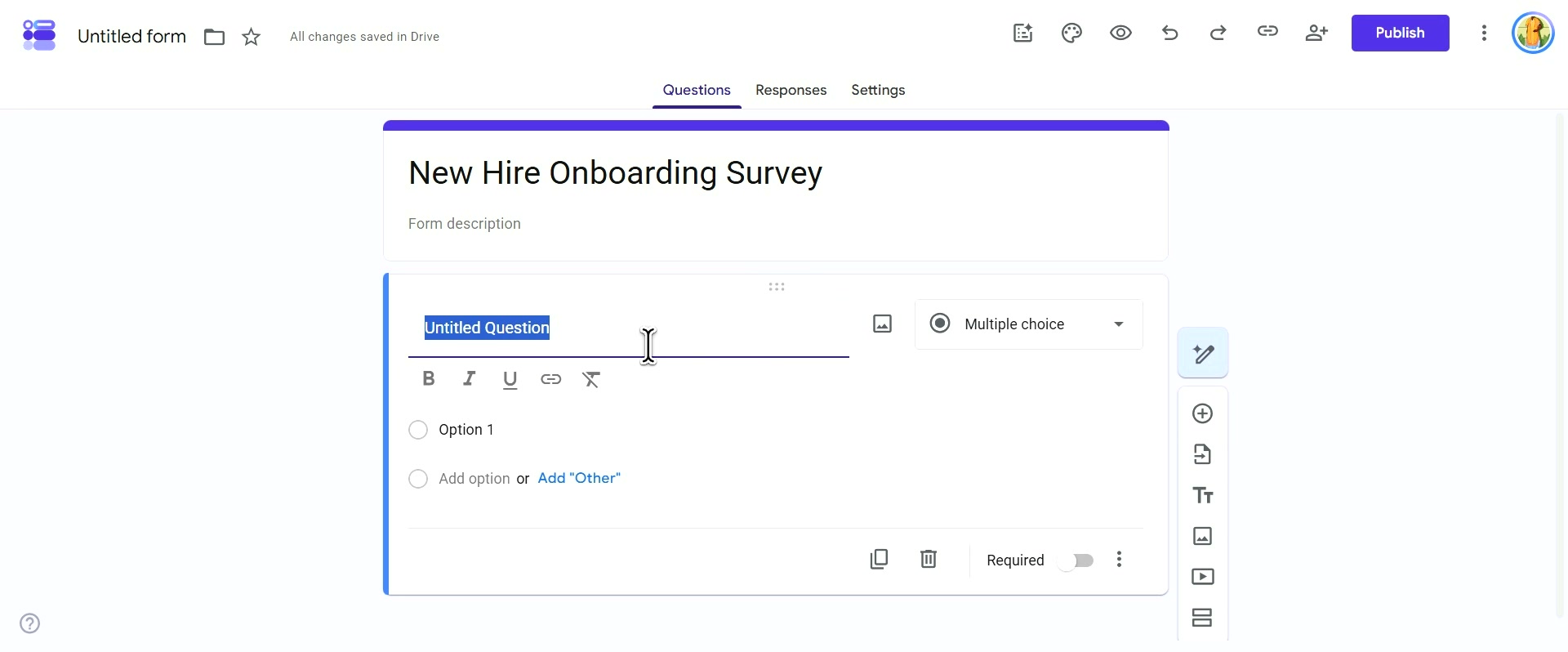
Click the Untitled Question field within the first question card
Type "What is your team?" as your first question. Ensure the question type is set to Multiple choice.
- 3
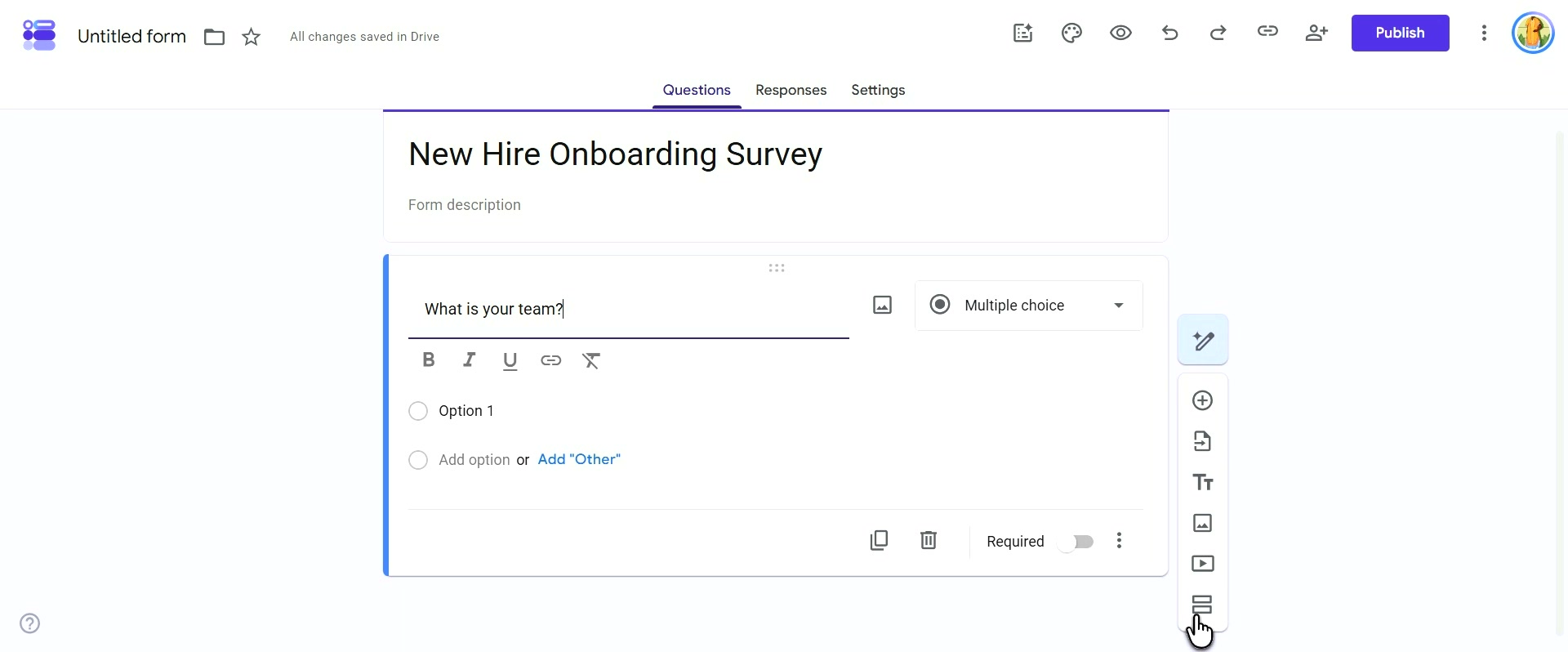
Locate the floating toolbar on the right side of the screen and click the Add section icon (two rectangles)
This action splits your form into two sections.
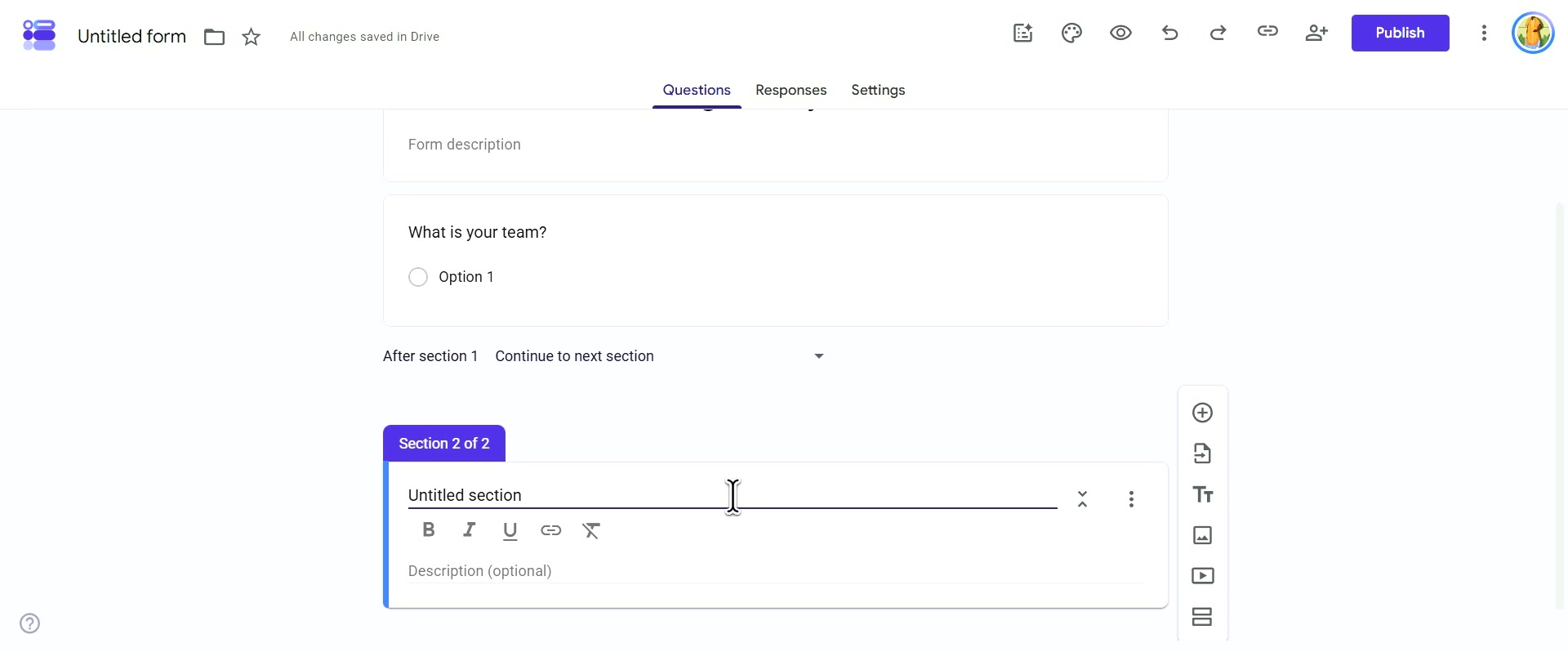
The form now displays "Section 1 of 2" with your first question, followed by a "Continue to next section" rule, and then "Section 2 of 2" below it. This structure ensures respondents complete the first section before moving to the second.
- 4
Scroll down to view the new section
Click the Untitled section field for Section 2 of 2 and rename it to "Your first week".
- 5
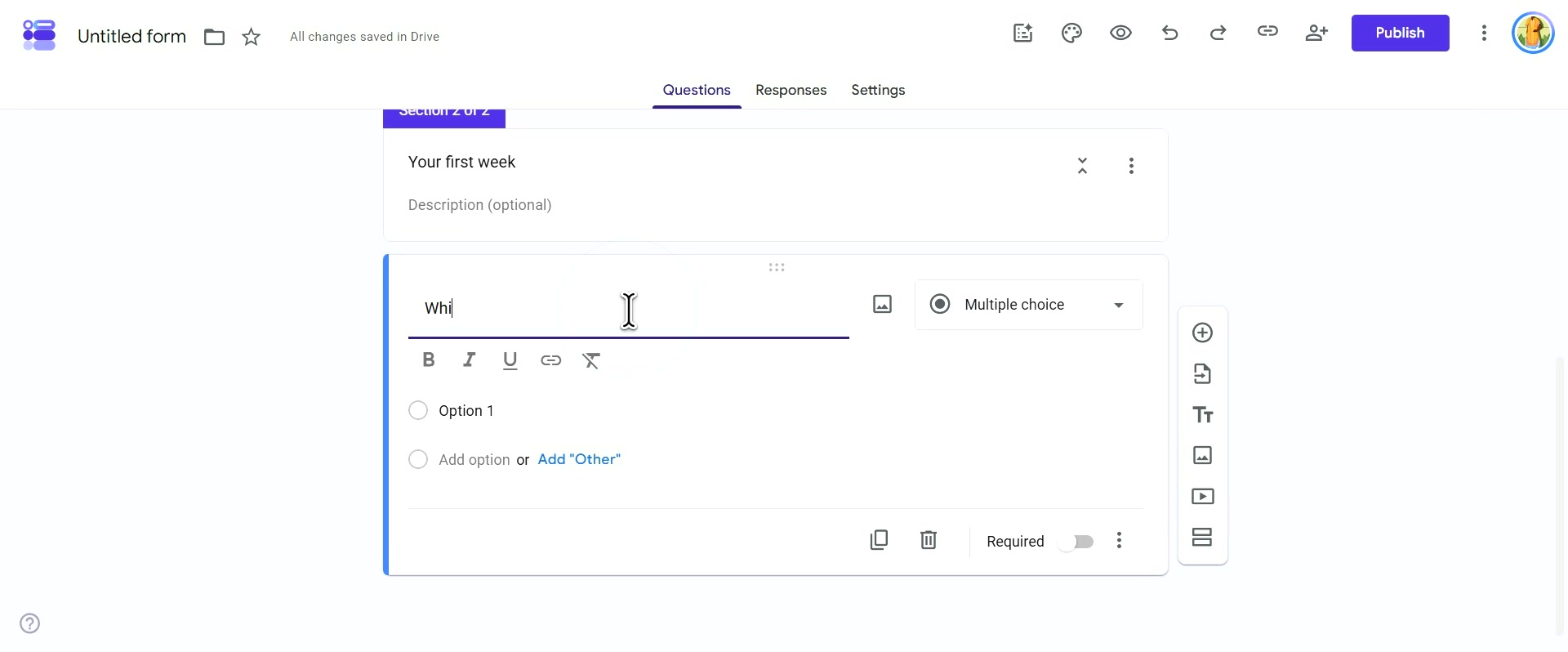
With Section 2 active, click the Add question icon (plus sign) in the side toolbar
A new question card will appear under the "Your first week" section heading. Type "Which day was most useful?" into the question field.
Survey Structure Complete
You have successfully created a multi-section Google Form with distinct questions in each section. Continue adding questions to flesh out your survey.