
Google Forms tutorial
How to create a survey in Google Forms
Step 1 of 4
Recorded once, then narrated, zoomed and captioned by Explaino.
Follow along
scroll to advanceCreate a Simple Customer Feedback Survey
This guide will walk you through building a two-question customer feedback survey from scratch in Google Forms, showing you how to use different question types.
- 1
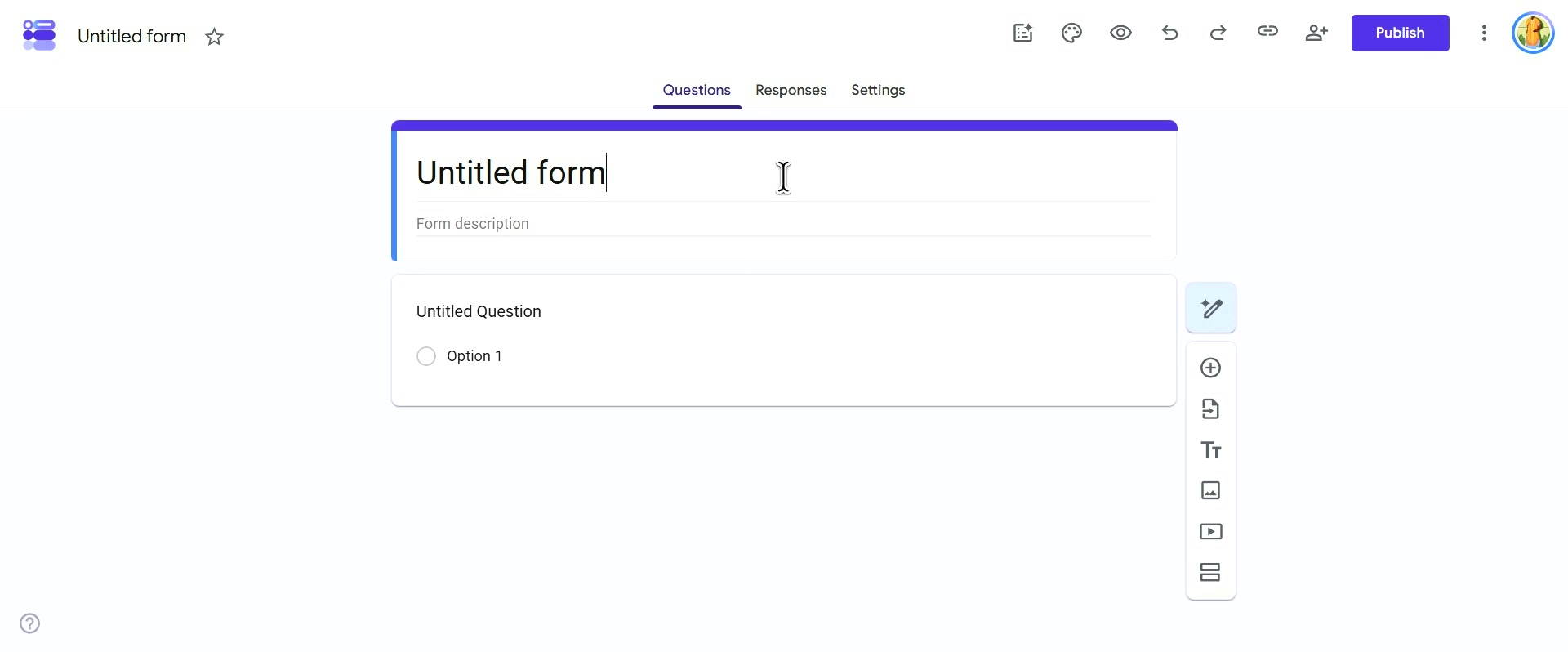
Click into the Untitled form field at the top of the page
This is where you will name your survey.
- 2
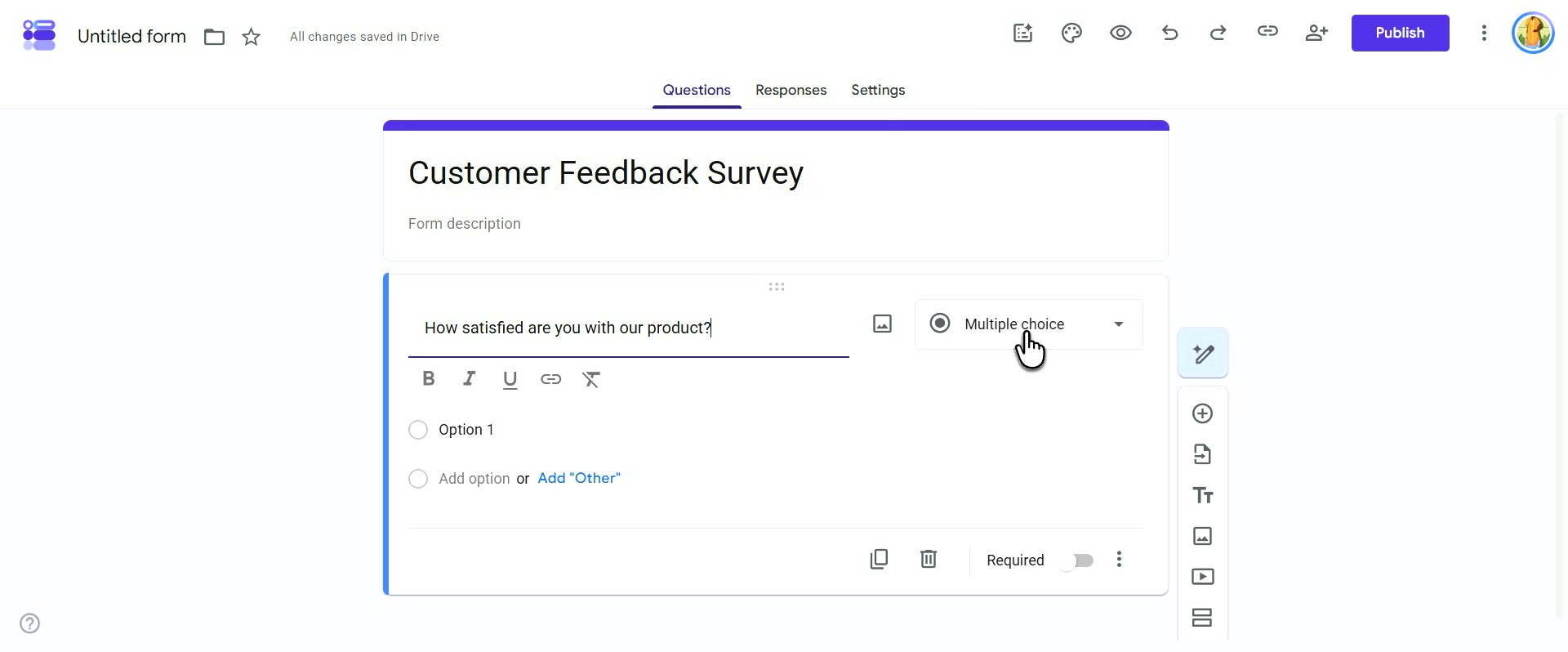
Click into the Untitled Question field and type "How satisfied are you with our product?"
Google Forms automatically saves your changes to Drive.
- 3
Select Linear scale from the dropdown menu
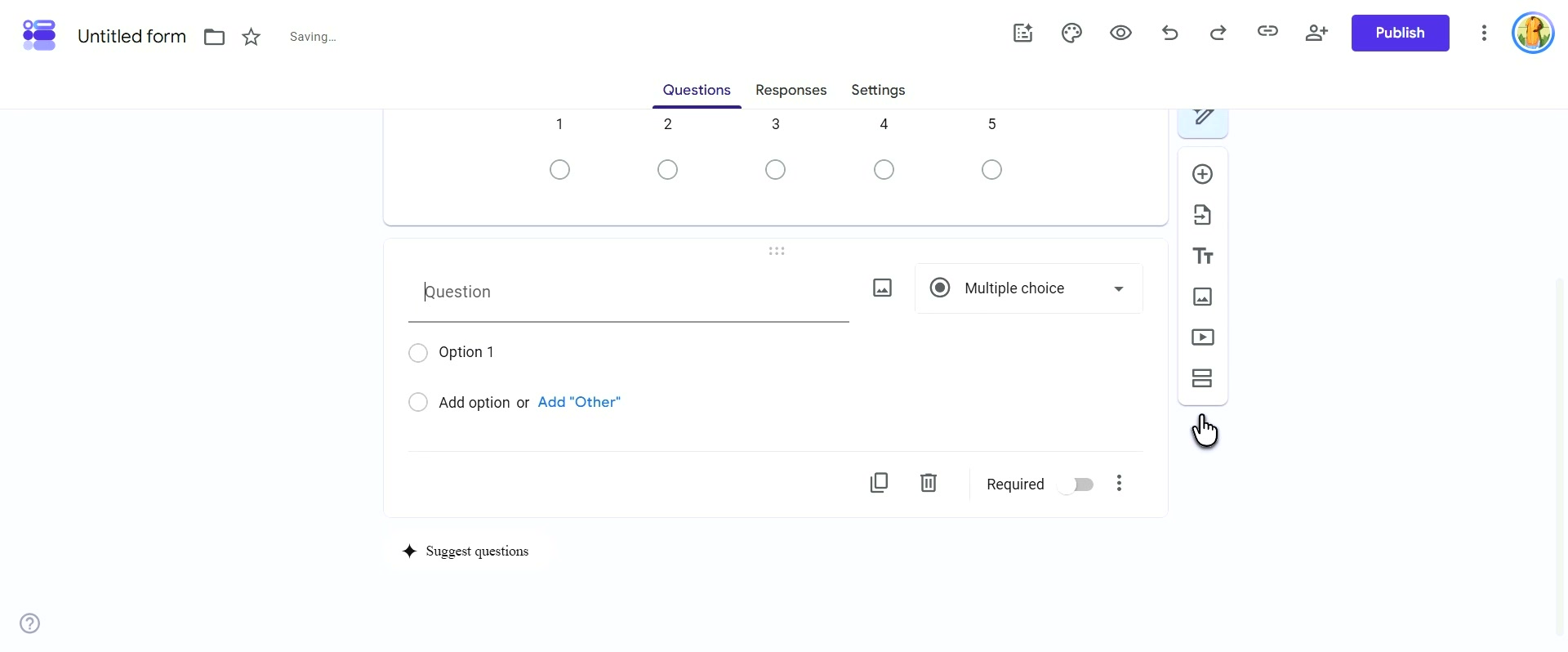
This will change the question to a rating scale, typically from 1 to 5.
- 4
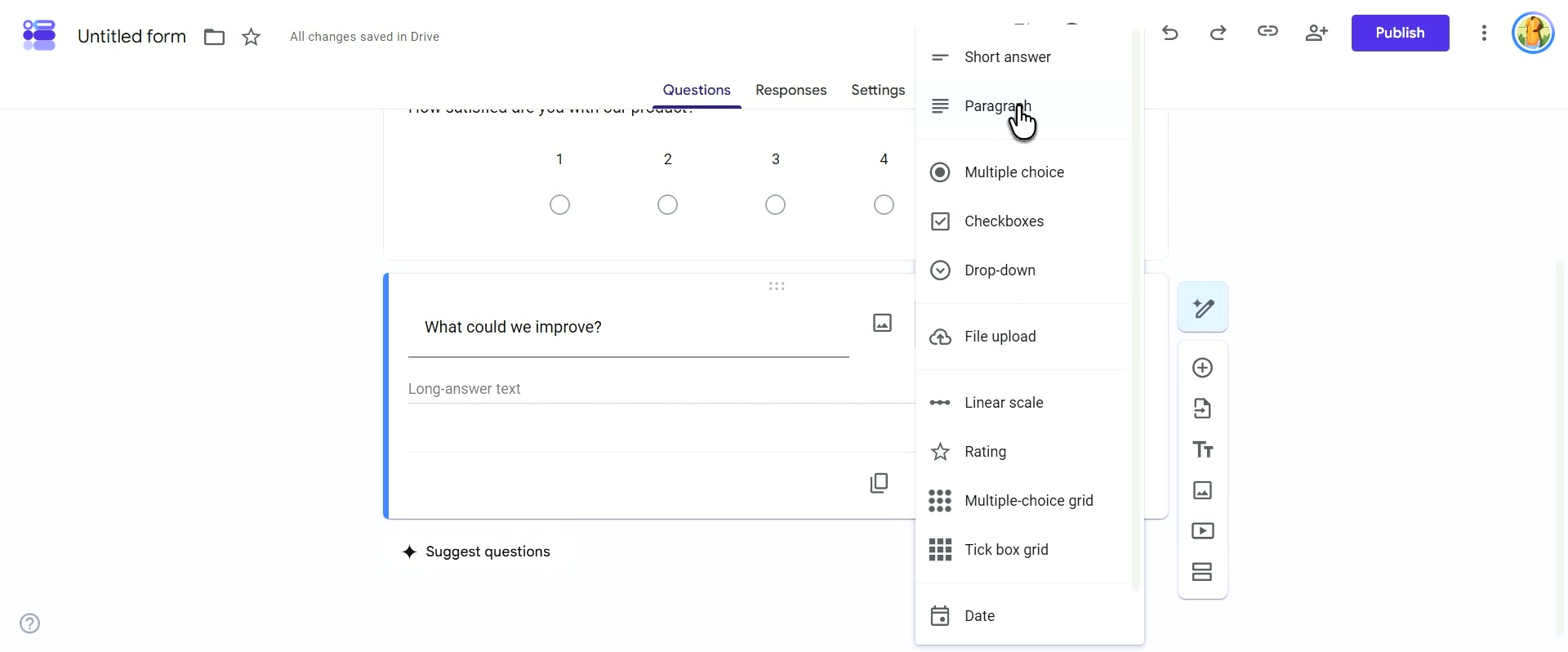
Click into the new Question field and type "What could we improve?"
Then, click the Multiple choice dropdown menu to change its type.
Survey Ready to Publish
You have successfully created a two-question customer feedback survey. You can now publish it or add more questions as needed.